
Next run
—Tonight's schedule
Phone access
—Actions
Upcoming
Past
Run history
Drivers
Names must match the portal exactly — that is what the search box types.
Daily summaries
Activity log
What this does
Every night at 12:01 AM it signs into TripLink by itself and files the Route Request for the drivers you scheduled. You do not need to be awake, logged in, or at the office.
Day to day there are only two things to do: make sure the day is scheduled, and glance at the Status screen to confirm it worked.
1 Sign in
Open schedule.santanaride.com on your phone or any computer. Tip: add it to your phone's home screen and it opens like an app.
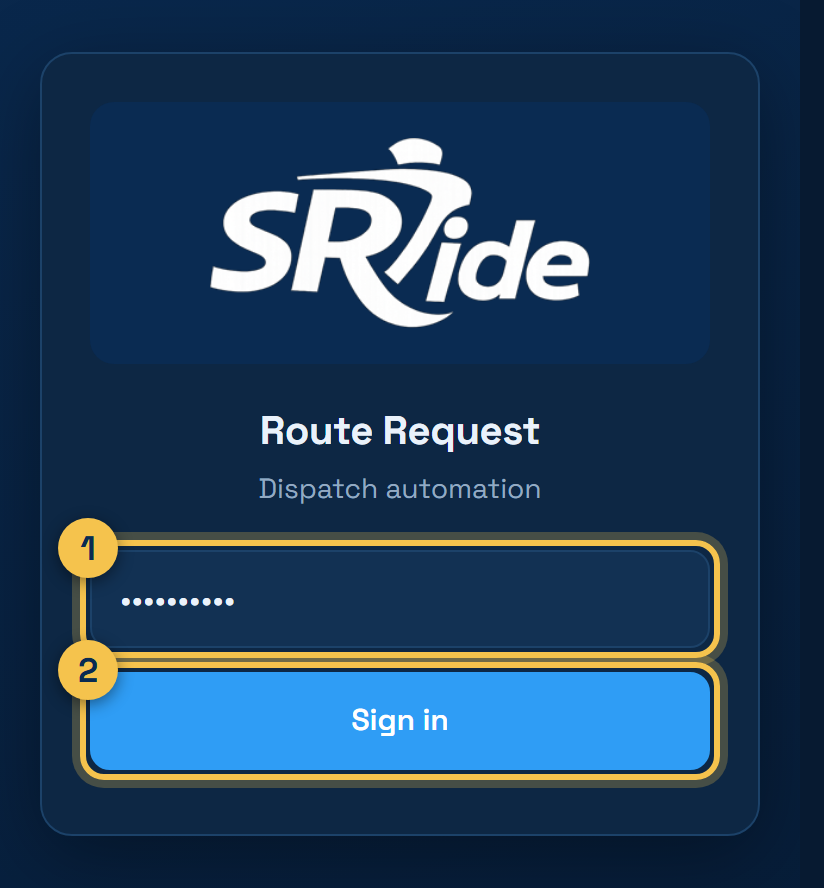
- 1 Type your dashboard password
- 2 Tap Sign in
2 Check it worked
This is the screen to look at each morning.
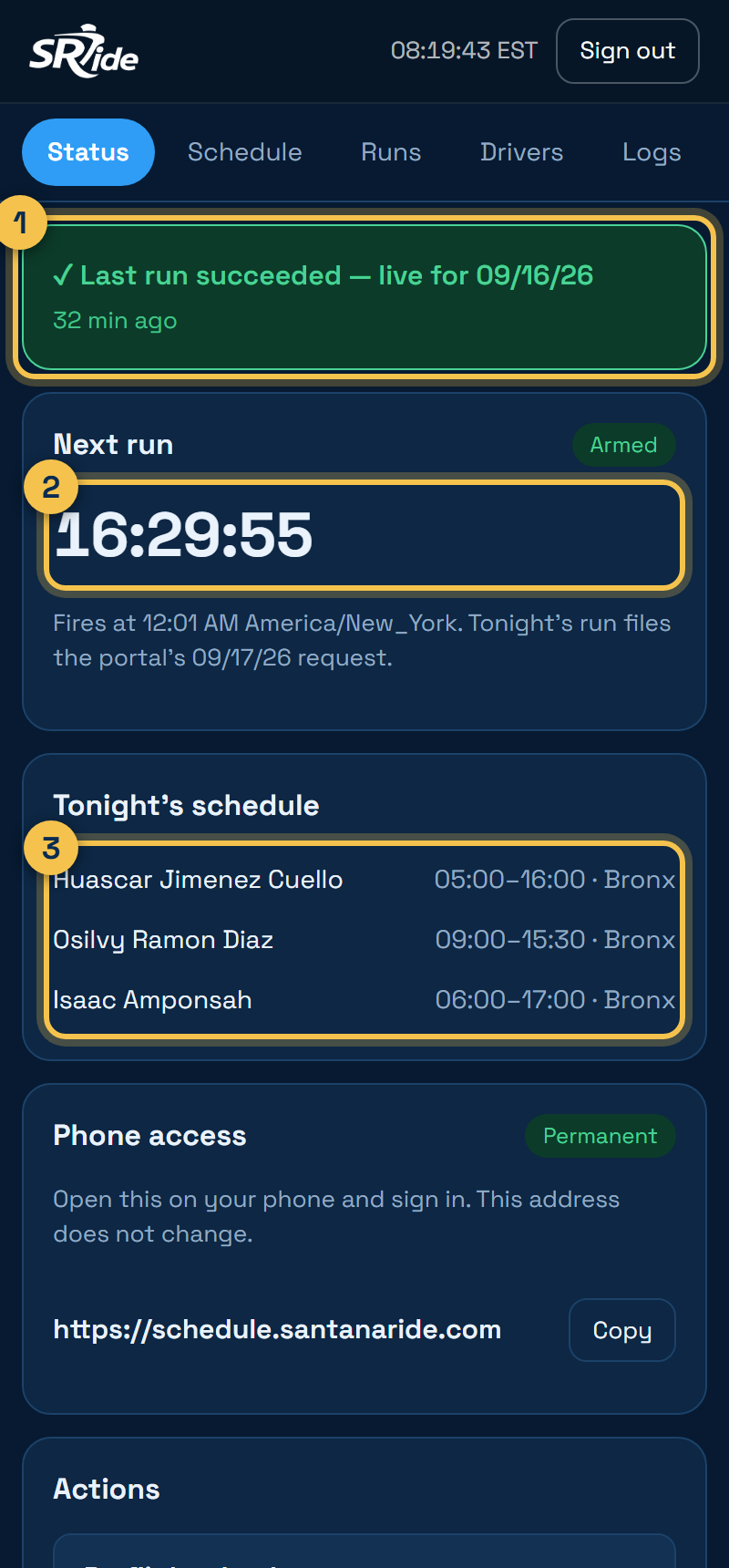
- 1 Green means last night worked. Red means it failed — go to the Runs tab to see why.
- 2 Countdown to the next automatic run
- 3 The drivers going out tonight
3 Schedule a day
Under the Schedule tab.
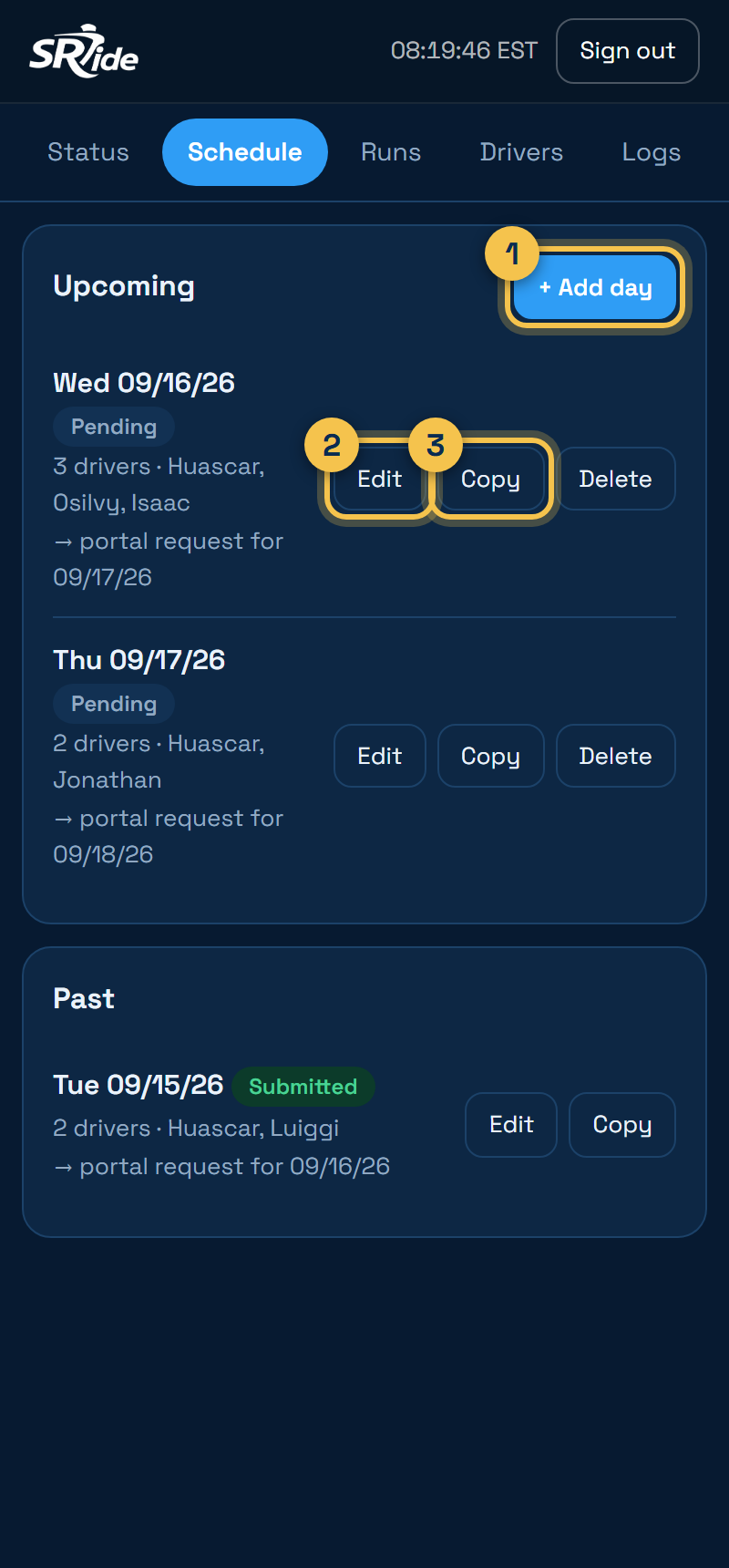
- 1 + Add day — set up a new day
- 2 Edit — change a day's drivers or hours
- 3 Copy — reuse a day on another date. This is the quickest way when the roster repeats.
4 Fill in the day
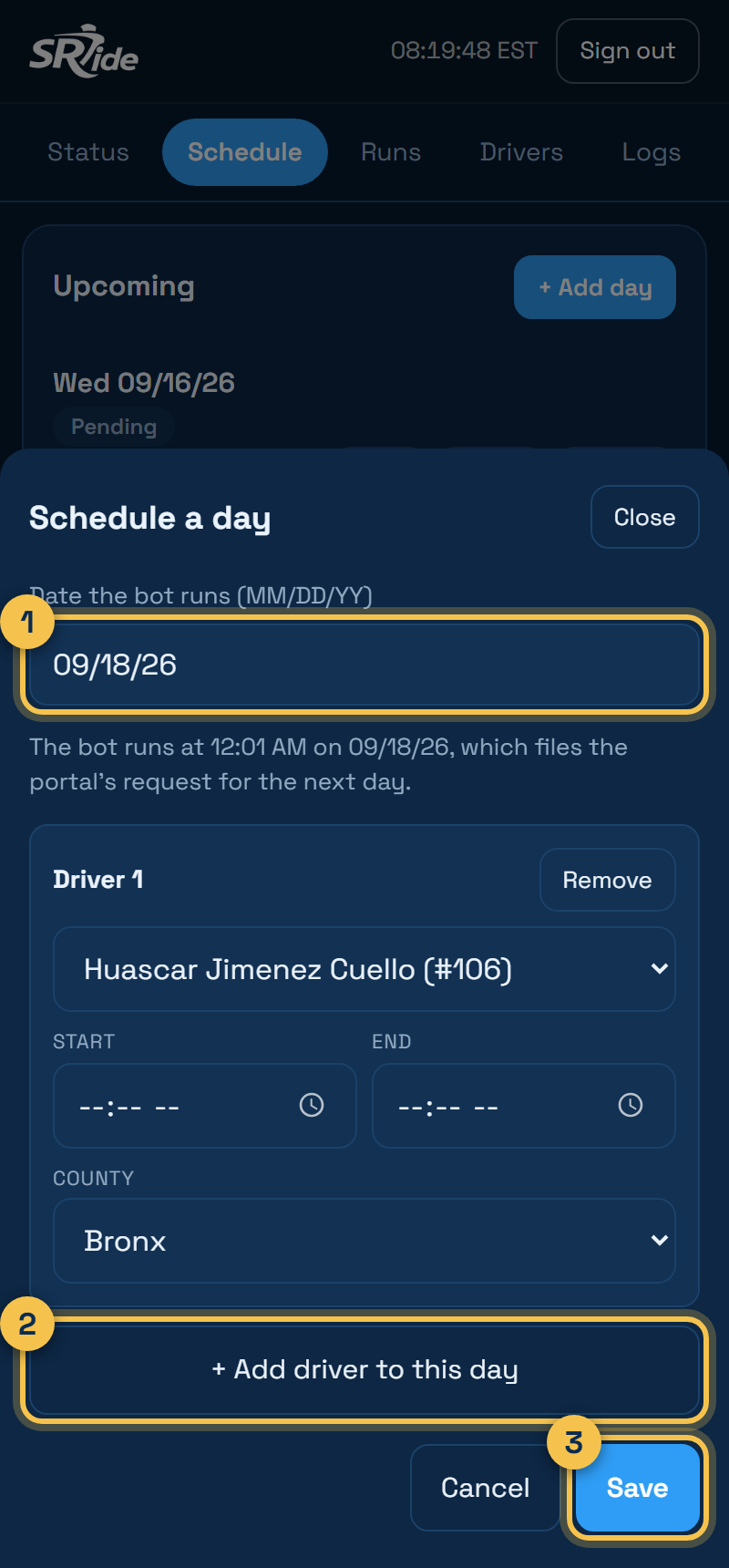
- 1 The date the bot runs, as MM/DD/YY
- 2 Add a driver row, then set start time, end time and county
- 3 Save
The time boxes use your phone's built-in clock picker, so the hour is always valid — you cannot mistype it. The driver list only offers people who are not already on that day, and it refuses to save an end time that is before the start time.
5 The three buttons
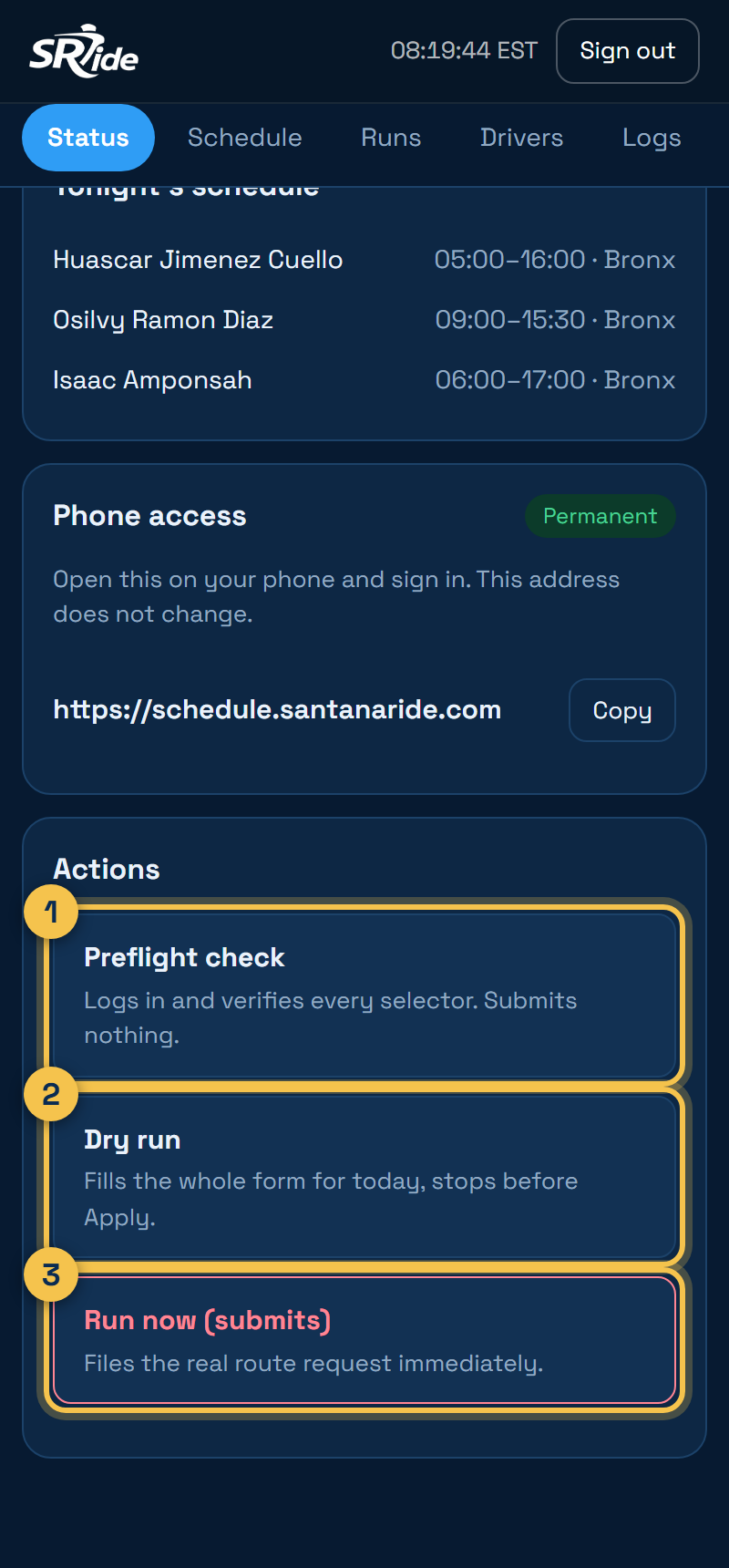
- 1 Preflight check — signs in and checks the portal still looks the way the bot expects. Submits nothing. Takes about half a minute. Use it whenever you are unsure, or after TripLink updates.
- 2 Dry run — fills the entire form for today and stops right before Apply. Nothing is sent. Good for proving it would work.
- 3 Run now — this one really submits. It asks you to confirm first. Use it when a nightly run failed and you want to file the request by hand.
6 When something fails
Go to the Runs tab.
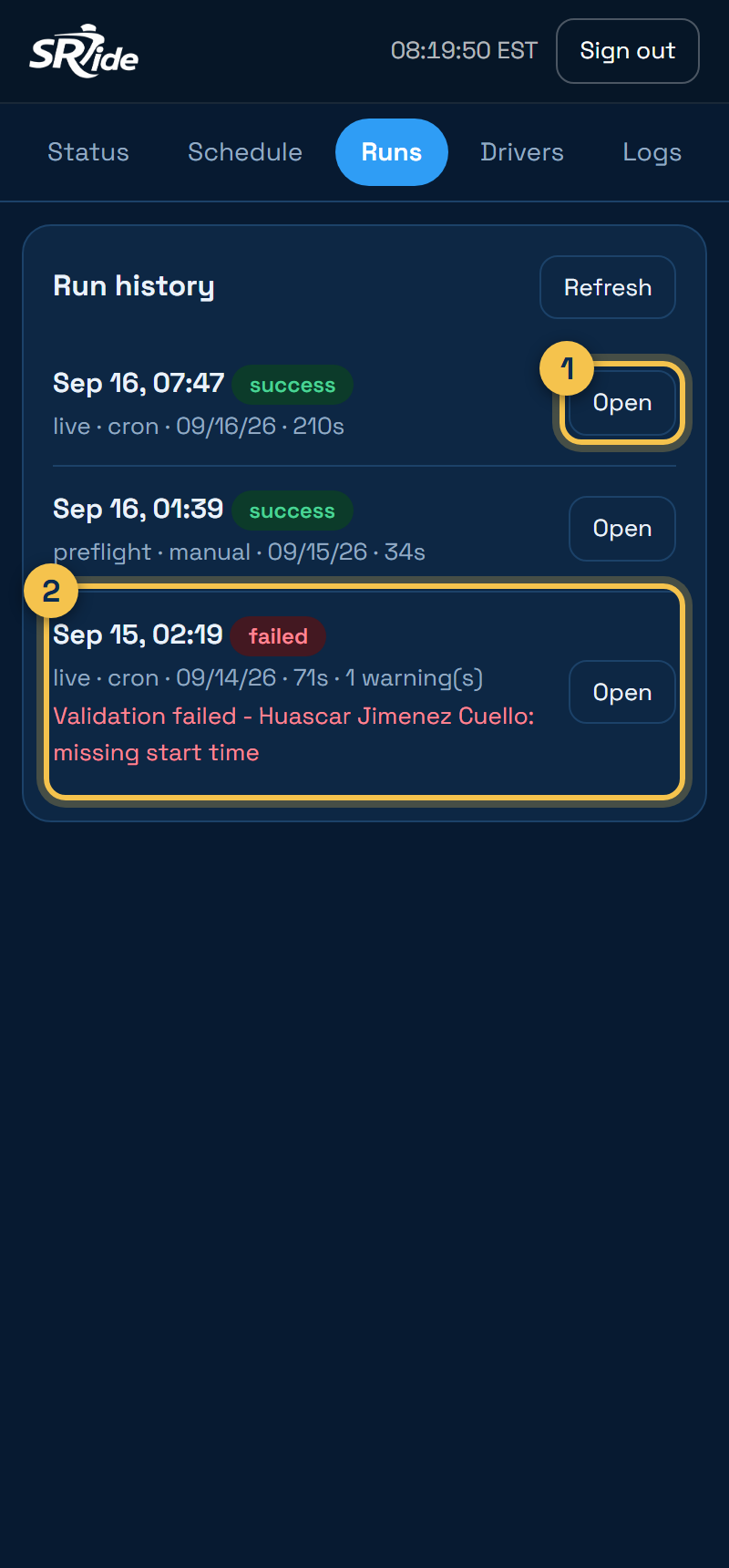
- 1 Tap Open for the full story: every step, how long it took, the exact error, and screenshots of the portal at the moment it failed
- 2 A red failed tag with the reason underneath
If a night fails, you usually just need to run it again by hand: Status → Run now, as long as it is before 8 PM.
Two things to remember
A day scheduled as 09/16 runs at 12:01 AM on 09/16 and books the portal's request for 09/17. That is how TripLink works, not a quirk of this app. Every screen shows you both dates, so when in doubt read the line that says "portal request for".
TripLink refuses next-day requests after 8:00 PM, so Run now switches off then and tells you why. The automatic 12:01 AM run is nowhere near that limit, so this only matters when you are filing something by hand late in the evening.
Still stuck?
- Red banner about the old bot — an old copy is running and would double-submit. It names the PID; stop that window.
- "No schedule for today" — nothing was scheduled, so tonight will be skipped. Add the day.
- Everything looks frozen — a run takes 2 to 5 minutes. The buttons stay greyed out while one is in progress.
- Signed out — sessions last 12 hours. Just sign in again.